DisplaySystemTray
One-click display modes and saved monitor layouts from the Windows tray.
 Eddie OffermannDesign and engineering
- Role
- Design and engineering
- Areas
- Tools, Apps
Changing between a docked setup, a single laptop screen and a recording layout usually means a trip through Windows display settings. DisplaySystemTray puts it in the tray menu.

The menu offers Extend, Show only on 1 and Show only on 2, plus any number of saved configurations. Rather than reimplementing every display option, the app snapshots whatever has already been arranged in Windows, including active displays, resolutions, refresh rates, positions and orientation, and restores it on demand. If a saved layout's monitors aren't connected, it names the missing displays and changes nothing.

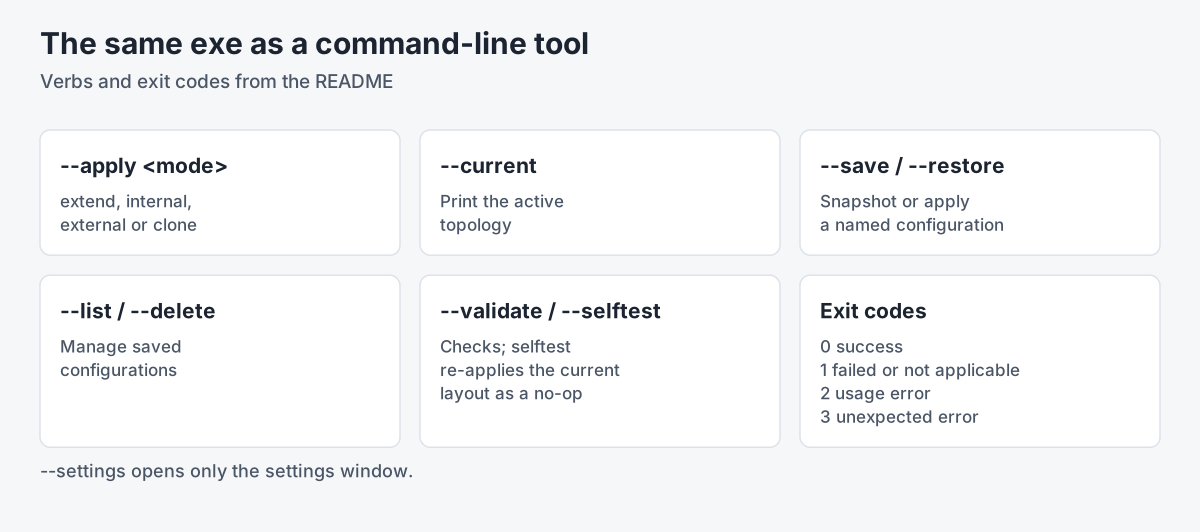
It's C# on .NET 8, published as one self-contained exe. Display control goes straight to the Windows CCD API (QueryDisplayConfig and SetDisplayConfig), not undocumented switches. Configurations are stored as readable JSON with atomic, cross-process-locked writes, and adapter IDs are remapped by monitor device path when restoring, so saved layouts survive reboots. The same exe works as a command-line tool with documented exit codes, which makes it easy to bind to hotkeys and scripts.
Links
Sources
Related work
-
B2C Webmail
A lightweight HTML email sender for Gmail, with three interchangeable UIs and a CLI.
-
BigBlueBam and the B-Suite
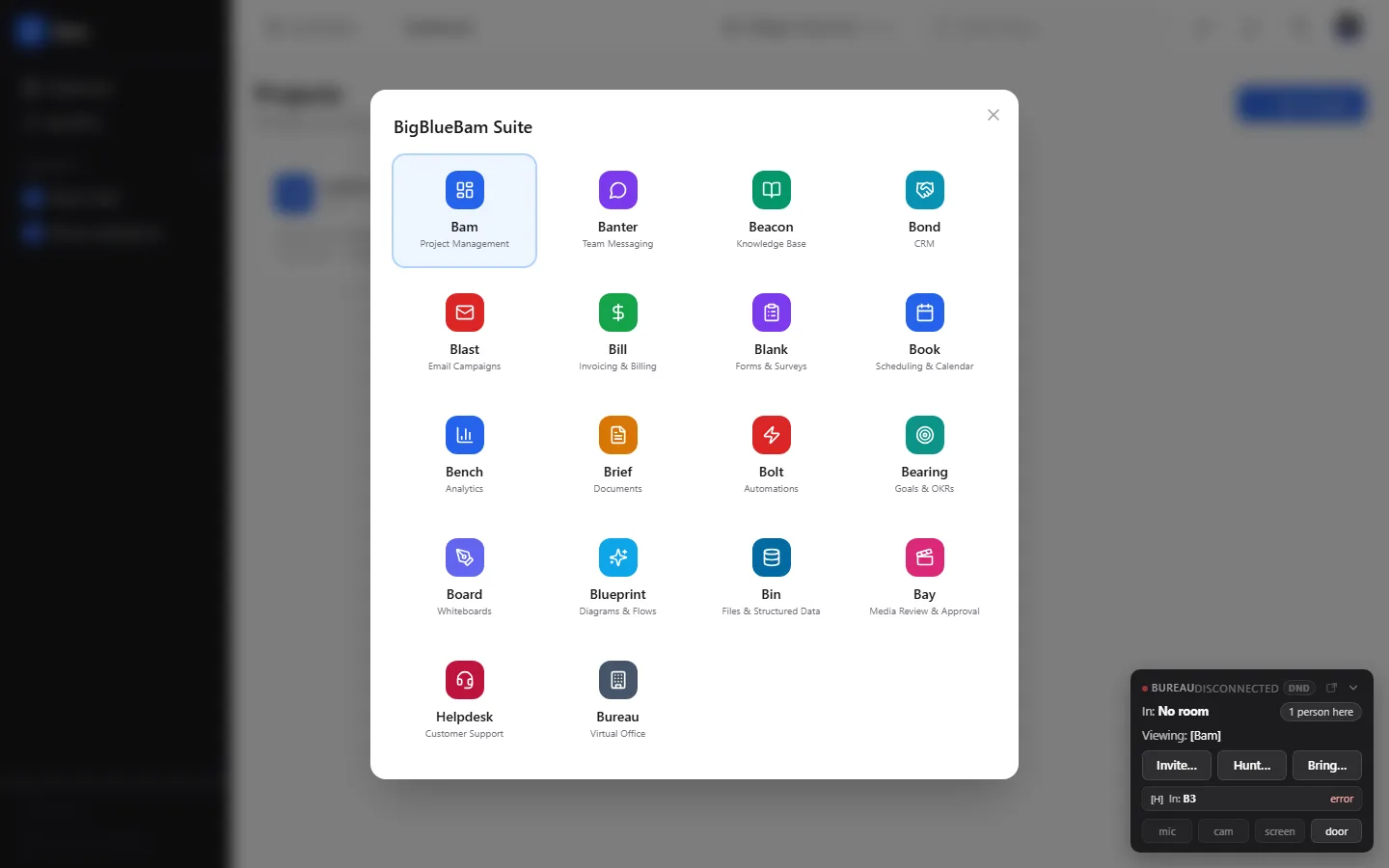
A work suite where AI agents work alongside people, with the same permissions.
-
Cardforia and SecureVR
Unity building blocks for phone-based AR and VR.
-

DriveSpeedTest
An honest external-SSD benchmark that says whether the drive, cable or port is the bottleneck.